• Skip to primary navigation
  • Skip to main content
  • Skip to primary sidebar

Training Profits

Learn How To Create An Online Course

  • START HEREHow it works
    • How It Works
    • > HOME
  • COURSESLearning For Trainers
    • Training Profits Course
    • Filming Profits Course
    • > All Training Courses
  • PRODUCTSStuff To Help You Succeed
    • The Training Manifesto
    • Training Profits Book
    • Training Templates
    • Green Screen People
    • Sell Your Courses
    • > All Products
  • RESOURCESMy Recommendations
    • Linktree
    • Kit & Resources
      • My Training Kit
      • Training Tools
      • Training Resources
      • Training Profits Merch
      • Free Guides
      • Free Videos
      • Course Creators Newsletter
      • Course Creators Association – coming soon
      • Free Webinars – coming soon
You are here: Home / Archives for software

software

How To Use Trello To Manage Your Projects

By Leigh Burke on March 31, 2019

What’s Trello?

Trello is the coolest and an easy to use online project management tool which is most popular in the market at the present. With Trello you can create multiple projects, assign tasks to your team members, and can track the progress of each step.

So, who should use Trello?


Whether you’re a student working on an academic project, a teacher who wants to plan semester course work , an employer who wants to assign tasks to his team, a blogger who wants to create a long-term blog plan, a traveler who to create bucket list, a book reading enthusiast who want to create a reading library or schedule, a creative agency or a big organization, or you just want to organize your daily routine tasks, then Trello is the best tool for you!

Here’s a step by step guide on how to get you rolling with Trello!

Add Project Name

First, go to Trello’s website where you can sign up for free, either creating a new account or using an existing Gmail account.

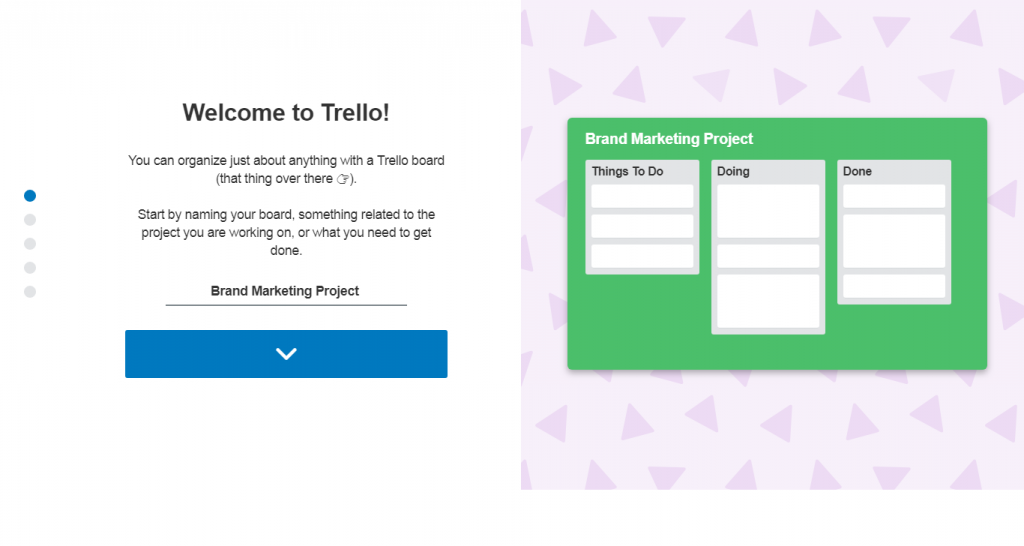
Once you’re done with one-click sign-up, add the project name you want to work on. Just like in the picture below let’s assume you want to work on Brand Management Project.

Create Lists

Next step is to create lists you want to work on. For example, in the picture below the lists are named as “Things To Do”, “Doing” and “Done” or you can create list names of your own choice.

Create Cards

Each further category of a list is called a card. For example, in our Brand Management project, we have added three lists. Let’s say we add three additional cards in the “Things To Do” list as our project deliverables named:

  • Brand Introduction
  • Marketing Strategy
  • Financial Planning

Create Boards

Once you’re done assigning project name, creating lists and cards, you will be then directed to your Trello board or simply your Trello workspace.

Trello Board is where all your work is placed, done, shared or in simple words where your project work is managed.

You can also create multiple project boards for your every project in Trello.

Create a Team

Creating a team is very simple. Just tap on the Trello logo on the top center of your board and you will be directed to another page. It will look like in the picture below.

On the left corner, tap on create a team and add participant’s name and click create.

Notifications

The notification function helps you keep on the track on what’s being done, by whom and when. Now you will never miss a thing.

Menu

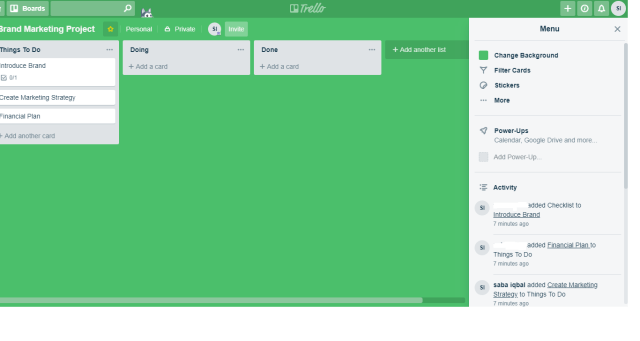
The menu option shows your project activity, it also gives options to change board background, add card filters, stickers, Power-ups, and much more.
Trello Power-Ups

Power Ups in Trello are just like extensions are in Google Chrome. These are additional tools you can add to your Trello board to manage your projects more effectively.
You can add/drop the power-ups as you wish, depending on the Trello price package you’ve subscribed.

Create A Shareable Board Link

Just like many other online workspaces you can also create a shareable link with Trello. Using this link anyone can view your project board.

Go to the right corner, tap on menu and at the end of it you will see an automatically generated board link of your project.

Trello’s diversity and ease to use with interesting features show that it is almost for everyone- simply one tool for all. One can share his/her Trello board with public or can keep it privately. The online collaboration has made it easy to interact with team members even if you’re sitting at the other corner of the world.
How To Use Microsoft OneNote To Take Notes

By Leigh Burke on March 28, 2019

Just like the name suggests, Microsoft OneNote is a digital note-taking software. It helps you to create multiple notebooks at a single place.

Microsoft OneNote is often used by students to create academics notes but it can also be used by professional purposes such as organizing meetings, for travel journals, for shopping or to do lists and much more.

Below are a few tips on how to get started with Microsoft OneNote Like a Pro!

  1. Create a Notebook

The first step is to create a Notebook. Let’s assume you’re a Business Management student and you want to create a Notebook for one of your courses named Marketing.

  • Right Click Notebook on the ribbon
  • Then go to properties
  • Here you can add the title of your Notebook, specify color, document location, and file format
  • Create Sections

Just like a physical Notebook, Microsoft OneNote allows you to create multiple sections for each Notebook you create. For example, you created a Notebook for marketing course and now you want to add notes for each different chapter, you will add sections and rename them as chapter 1, chapter 2 and so on, Here’s how to add new sections:

  • Right next to Notebook title, there is a Plus sign, tap on it to add new sections
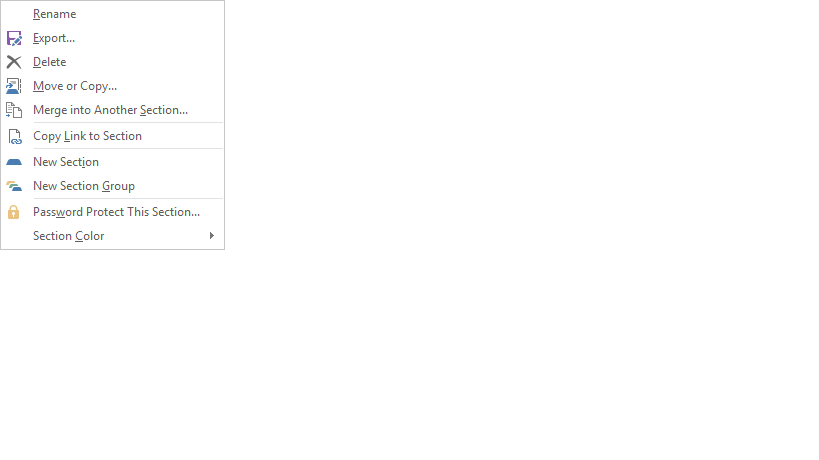
  • When you right click each section an additional window will opens which will give options for making changes in each section
  • Create Pages

            Microsoft OneNote allows you to add as many new pages as you want to each section you created.

  • On the right pane, there is an option to add new pages
  • You can also add title, date, time, etc. to each page either by simply clicking or right-clicking each page

There are also a bunch of amazing page templates such as professional, academic and other which you can use.

  • Simply go to Top Ribbon > Insert > Pages > Pages Templates
  • Add Tags
    One of our favorite feature of OneNote is adding specific tags. It is very easy to create a variety of tags for important points, be it a single word, line or paragraph and whether you want to discuss that important point later with the professor, employer, or you simply want to remember it.


  • Go to Top Ribbon > Home > Tags
  • Add documents. Pictures, Audio, or Video

You can also insert media into your OneNote pages such as images, files, recordings, link, etc.

  • Go to Top Ribbon > Insert > Your desired media preference
  • Convert Hand-written Text into Editable Text
    Another interesting feature of Microsoft OneNote is it allows you to hand draw text and also allows you to convert that hand-written text into editable one.


  • Go to Draw > Choose any Drawing tool > Draw text on your page
  • Then in the draw tab go to Lasso select and select the text you want to convert
  • Then go to and tap on Convert ink to Text
  • Share Your Notebook
    Just like other Microsoft office products like PowerPoint, Excel, Word you can also share your OneNote notes online with your friends, family, and coworkers.
  • Go to File > Share
  • Upload your Notes One Drive and create a link or simply add email of the recipient and click send

  • Data Recovery

Make sure to always store OneNote data on your One Drive. That way, if you happen to lose your data due to some undesirable or sudden situations such as if you happen to lose your mobile phone or laptop, or delete any page mistakenly, you can always retrieve or recover your lost data on Microsoft OneNote.

  • Go to File > Info
  • Then tap on Open Backups


The instructions discussed above are just a few features of Microsoft OneNote. We hope these tips help you in understanding the basic of Microsoft OneNote. Once you start using OneNote and explore you it a little, you will easily get to know other features within no time as well.

Primary Sidebar

SEARCH TRAINING GUIDES

FREE COPY OF TRAINING PROFITS MANIFESTO

Oh hi there 👋 It’s nice to meet you.

Fill in your first name and email address below and click ‘SEND ME MY COPY NOW’ to claim your free copy of the Training Manifesto.

We don’t spam! Read our privacy policy for more info.

Check your inbox or spam folder to confirm your subscription.

Categories

  • Training Profits Manifesto
  • Our Courses
  • Free Guides
  • Terms & Conditions
  • Privacy Policy
  • Contact Me
  • Socials

Cart

Copyright © 2025 · TrainingProfits.com · Log in